
Technology · World 6 of 8 · Years 7–8
Code a Game: Algorithms and Debugging
Design, code and debug a Scratch game that younger kids love to play, then sit beside them and watch what really happens.
Big question: How do we turn an idea into clear instructions a computer can follow, and design a game that is fun, fair and easy for a younger player?
- You'll make
- A playable Scratch game designed for a younger player, with clear instructions, a scoring system that uses variables and if–else decisions, and a short design journal showing your algorithm, your bug log and what you changed after testing.
- For
- A junior class (ages 5–8) who play-test your game on game day, plus their teacher, who checks it is right for their learning.
- Time
- 5 weeks · 2 sessions a week
Your mission
Why it matters
The junior classes at your school want a new game for their learning time, and they have asked your class to make it. You will meet your players, find out what they enjoy and what is hard for them, then design, code and test a Scratch game just for them. On game day, they play it while you watch, take notes and fix what goes wrong.
Every app, game and website started as an algorithm: a set of steps someone wrote down and tested. Aotearoa has a fast-growing game industry that sells games all over the world, and coding is a skill used in farming, health, film and science. Learning to design for a real player, and to find and fix your own mistakes, is how programmers work every day. It also helps you think about what makes technology fair and safe.
Your first step
Write the steps for a simple everyday job, like making a Marmite sandwich, as if you were telling a robot. Give your steps to a partner who follows them exactly. What went wrong?
Make it yours
Choose a context
Same big question, three different places to explore it. Pick the one that fits your class and community.
Learning game: practise words or numbers with the juniors
Ask a junior teacher what their class is learning: counting, number facts, colours, or a list of kupu Māori or words from a Pacific language the class is learning. Design a game that helps them practise. Use the teacher's own word list and check spelling and pronunciation with them, so the game teaches the words correctly.
Coast: a clean-the-beach game
Plastic on New Zealand beaches harms seabirds, fish and turtles. Design a game where the player catches rubbish before it reaches the sea, or sorts it into recycling, compost and landfill. Base the rubbish on what people actually find in beach clean-ups near you, so younger players learn something true.
Street: a safe-crossing game
Many five-year-olds are just starting to walk or scooter to school. Design a game that helps them practise safe road habits: stop at the kerb, look both ways, use the crossing, wait for the green person. Talk with the school's road patrol or a local police education officer about the most important rules.
DESIGN
Week by week
Two sessions a week, each with Getting started and Stretch support so the whole class works together.
- W1Think like a computer and meet your playersDiscover: Robots and players · Explore: First steps in Scratch
- W2Decisions, loops and zeros and ones, then plan your gameExplore: Selection, iteration and binary · Sketch: Game design on paper
- W3Build version one and hunt the bugsSketch: Algorithm to code · Improve: Bug hunt
- W4Test with real players and make it easier to playImprove: First play-test with juniors · Give Value: Design for every player
- W5Game day, and the choices behind the codeGive Value: Game day · Navigate Constraints: Ethics and trade-offs

Hands-on
Activities
Investigations and projects that fit the weeks above. Open one to see what you need and how you'll know it worked.
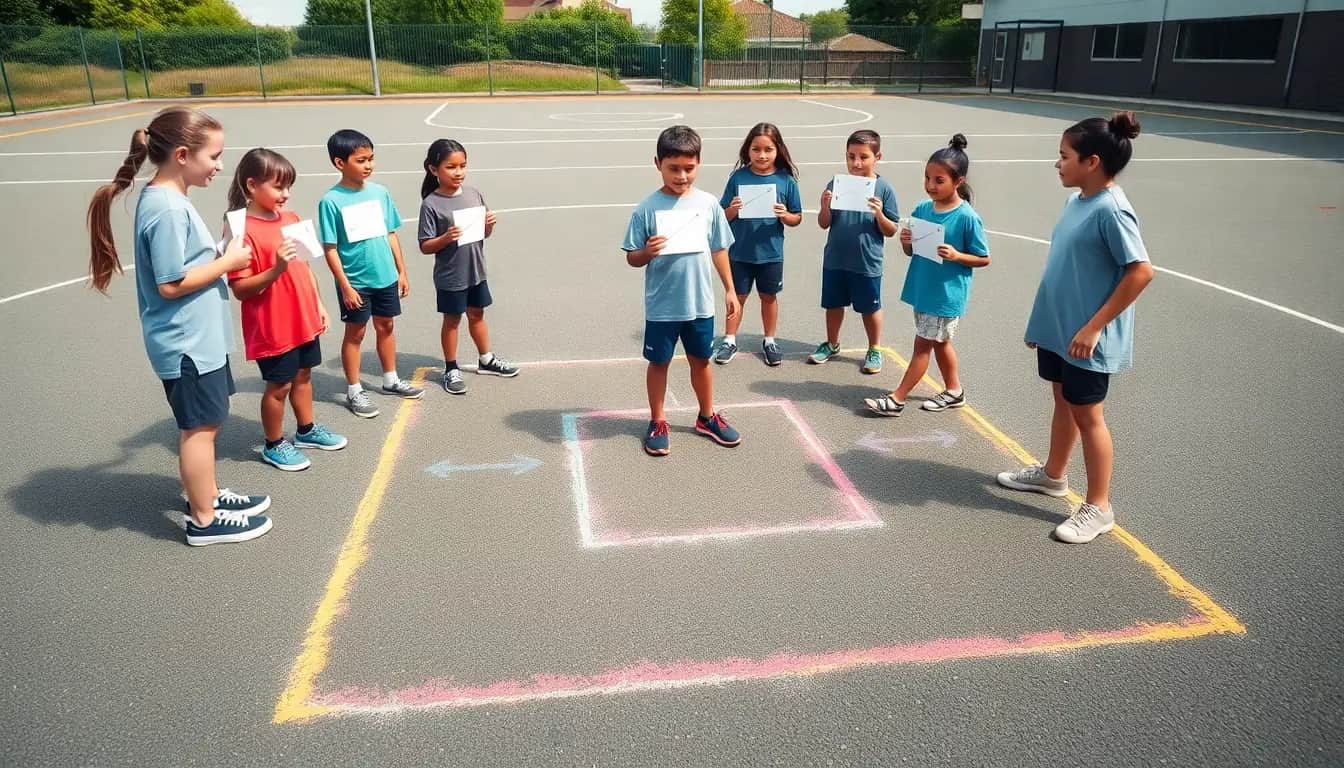
Kidbots on the courtCan you write instructions so exact that a 'robot' reaches the target without a single mistake?Open
You need: Chalk or masking tape · A 5 × 5 grid about 50 cm per square · Arrow cards: forward, turn left, turn right · A soft toy as the target
- Draw the grid on the court or tape it on the classroom floor.
- Put the robot (a classmate) on a start square, facing one way. Place the target.
- The programmers lay out arrow cards in order without speaking to the robot.
- The robot follows the cards exactly. If they walk off the grid or into an obstacle, that is a bug.
- Fix the program by changing only the cards that were wrong.
- Add obstacles and try again. Can you find a shorter program?
How you'll know: Your robot reaches the target on the first run of your final program, and you can point to the card that caused any earlier bug.
Safety: Play on a dry, clear surface, walking only, and keep away from the edge of the court.
Go further: Add a 'repeat 3' card and rewrite your program with fewer cards.
Fits week 1 →Catch game with score and livesHow do loops and if–else decisions make a game work?Open
You need: A device with Scratch · A starter project or a blank project
- Choose a player sprite and an object sprite, like a bucket and a piece of fruit.
- Make the player move left and right with the arrow keys.
- Make the object start at a random x at the top and glide or fall down inside a forever loop.
- Make a variable called score. Add: if touching player, change score by 1 and send the object back to the top.
- Make a variable called lives. If the object touches the bottom, change lives by -1.
- Add: if lives = 0 then say 'Game over' and stop all, else keep playing.
How you'll know: Your score goes up when you catch, lives go down when you miss, and the game ends properly at zero lives.
Go further: Make the object fall faster every time the score reaches a multiple of 5.
Fits week 2 →Binary card magicHow can a computer show any number with only zeros and ones?Open
You need: Five cards with 1, 2, 4, 8 and 16 dots on one side and blank on the back · Paper for recording
- Lay the cards in a row from 16 on the left to 1 on the right, all dots showing. Notice each is double the one to its right.
- Turn cards over so only the dots you need show to make 5. Which cards are face up?
- Write face up as 1 and face down as 0. 5 is 00101.
- Make 10, 17, 21 and 31 and write each in binary.
- What is the biggest number you can make with five cards? What about six?
- Challenge a partner: say a binary number, they turn the cards to find it.
How you'll know: You can turn any number from 0 to 31 into binary and back again without counting dots one by one.
Go further: Use binary to send a secret letter: A = 1, B = 2 and so on. Decode your partner's message.
Fits week 2 →Paper prototype play-testWill your game idea make sense to someone who has never seen it?Open
You need: Your six-panel storyboard · Cut-out paper sprites · A large sheet as the 'stage' · A timer
- Lay the stage on the table. Put the paper sprites where the game starts.
- Explain the game to your tester in one sentence only.
- The tester says what they want to do; you move the paper pieces as the computer would.
- Do not help or explain further. Note every time they hesitate or ask a question.
- Play for three minutes, then ask: what was the goal? What was confusing?
- Change one rule or instruction on your storyboard before you code anything.
How you'll know: Your tester can say the goal of the game in their own words after one play.
Go further: Test with someone much younger at home and compare their questions with your classmate's.
Fits week 2 →The buggy projectWhat are the most common kinds of bugs, and how do you track them down?Open
You need: The teacher's buggy Scratch project · A bug log sheet · A rubber duck or any toy (optional)
- Play the game and write down everything that goes wrong. Don't fix anything yet.
- For each bug, predict which sprite and which script is causing it.
- Read that script out loud, block by block, to your partner or the duck.
- Change one thing only. Test again. Did it fix the bug or create a new one?
- Record in your log: what happened, what should happen, the cause, the fix.
- Sort your bugs: sequence bug (wrong order), logic bug (wrong condition), or input bug (wrong key or value).
How you'll know: Your log shows all four bugs fixed, each with a cause and a type.
Go further: Plant two sneaky bugs in your own copy and swap with a partner.
Fits week 3 →Watch, don't help: junior play-testWhat do real young players do with your game, not what you think they will do?Open
You need: Your game on a device · An observation sheet with tally columns · A pencil
- Sit beside your player, not in front of the screen.
- Say only: 'This is a game I made. Have a go.'
- Tally each time they look confused, click the wrong thing, laugh or say 'again'.
- Help only if they ask twice, and write down what they asked.
- At the end, ask two questions: 'What was the best bit?' and 'What was tricky?'
- Circle the three biggest problems to fix.
How you'll know: You have tallies and quotes from at least two players, and three clear changes to make based on them.
Go further: Time how long each player keeps playing and compare version one with version two.
Fits week 4 →Fair and safe game checkIs your game fair, safe and honest for a young player?Open
You need: Your game · The fair-game checklist · A partner
- Privacy: check there are no real names, photos, school names or locations in the game or its notes.
- Copyright: list every image and sound. Mark each as 'I made it', 'Scratch library' or 'openly licensed with credit'.
- Fairness: does the game have a clear ending? Does it pressure players to keep going? Is losing kind?
- Accessibility: can a player who cannot read yet understand it? Are buttons big enough?
- Swap with a partner and check each other's game against the list.
- Fix anything that fails and note it in your journal.
How you'll know: Your game passes every item on the checklist, and you can explain one change you made for fairness or privacy.
Go further: Look at a game you play at home. Find one design trick that keeps you playing, and decide whether it is fair.
Fits week 5 →Look closer
From the real world

Background reading
Read to understand
Short readings written for Kōkiri Learn students, with their sources.
- Algorithms: instructions a computer can followWhat an algorithm is, the three building blocks of every program, and the woman who wrote the first one in 1843.
- Bugs, and how to squash themWhy every programmer writes bugs, where the word comes from, and five strategies for finding and fixing them.
- Zeros and ones: how computers store everythingHow binary works, why computers use it, and how your score, your sprites and your sounds all become zeros and ones.
- Fair play: making games that respect playersThe choices behind a game: privacy, copyright, fairness and design tricks, and how to make a game that is good for a young player.
Trusted NZ sites
Explore more
Placed at the stage of the journey where each one helps.
Discover
Kidbots ↗CS Unplugged, University of Canterbury
Program a classmate before you program a computer.
Explore
Binary numbers ↗CS Unplugged, University of Canterbury
Card activities that show how computers count with zeros and ones.
Explore
Scratch ↗MIT Media Lab
The free block-coding tool you will build your game in.
Sketch
Code Club Aotearoa ↗Code Club Aotearoa
Free step-by-step coding projects and volunteer-led clubs for kiwi kids.
Sketch
Introduction to Scratch projects ↗Raspberry Pi Foundation
Starter game projects you can follow, then change.
Improve
Algorithms ↗Computer Science Field Guide, University of Canterbury
Why some sets of steps are faster and better than others.
Give Value
Human–computer interaction ↗Computer Science Field Guide, University of Canterbury
How to design interfaces that people find easy to use.
Navigate Constraints
Scratch Community Guidelines ↗MIT Media Lab
Rules for sharing, crediting and keeping personal information private.
Navigate Constraints
Netsafe ↗Netsafe
Online safety advice for young people and whānau in Aotearoa.
Real audiences
- The junior class and their teacher who play the games on game day
- Whānau at a school games arcade evening
- A Code Club Aotearoa volunteer or local game developer who gives feedback on code and design
Work with other schools
- Swap Scratch files with a partner school and play-test each other's games with your own junior classes, then send back tallied feedback.
- Build a shared studio of games around one theme, such as clean beaches, where each school codes a different level.
- Run a joint online debugging challenge: each class plants bugs in a project for the other class to find and fix.
Stretch challenges
- Join or start a Code Club at your school or library and teach a younger coder one thing you learned.
- Remix your game into a two-player version using different keys for each player.
- Research how New Zealand game studios design games and write three questions to ask a local game developer.
- Try the same game idea in a different tool, such as MakeCode Arcade, and compare what was easier and harder.
New Zealand Curriculum
What this world covers
Mapped to the refreshed Phase 3 statements. The whole class covers both the Year 7 and Year 8 sequences over two years.
Technology · Digital technologies
Algorithms, conditions and binary; writing simple programs with structured steps and if–else logic; locating and fixing logic and input errors; using visual tools to represent binary; secure practices and ethical choice of digital tools
Year 7 sequence
Technology · Design and innovation
Co-constructing a brief with stakeholders (the junior class and teacher); applying usability and accessibility principles; improving the outcome with feedback
Year 7 sequence
Mathematics and Statistics · Algebra
Coordinates in four quadrants on the Scratch stage; spotting rules in sequences when using variables
Year 7 sequence
English · Oral language
Open questions that test assumptions when interviewing young players; explaining a design to an audience
Year 7 sequence
For teachers: how to run it
Prep: book devices with Scratch 3 (scratch.mit.edu runs in the browser; the offline Scratch app works where accounts are not allowed). Decide early whether students will use school Scratch teacher accounts (which let you manage student accounts without email addresses) or save files locally. Arrange a partner junior class and teacher for a first visit in week 1 and a game day in week 5; ask the junior teacher to share learning goals, word lists and any accessibility needs (reading level, fine-motor control, hearing). Print CS Unplugged Kidbots grids and binary cards, and prepare a 'buggy' Scratch project with four planted bugs for week 3. Safety and ethics: follow the Scratch Community Guidelines and your school's digital citizenship agreement. Students do not put their full names, photos, school name or location in projects. Only use the Scratch library, their own drawings and sounds, or openly licensed assets, and credit them. If projects are shared publicly, check them first and turn off comments where appropriate. Discuss 'sticky' design (endless rewards, pressure to keep playing) and agree that games for juniors must be fair and have a clear ending. Protocols: in the learning-game context, only use te reo Māori or Pacific-language words supplied and checked by the junior teacher or a fluent speaker; do not use machine translation. Differentiation: Code Club Aotearoa and Raspberry Pi Scratch projects give step-by-step starters for students new to Scratch; pair new coders with confident ones for a 'driver and navigator' approach, swapping every ten minutes. Extend with cloned sprites, lists, levels, custom blocks, or an accessibility mode (bigger sprites, spoken instructions). Pūkeko may ask a student one question about a bug; it never writes or fixes code. Links: Code Club Aotearoa can connect you with a volunteer coder; Kōkiri Lab's Robotics & Systems world takes the same algorithms into robots.
Plan this world into any term with the two-year planner. Students can record their thinking in their Kōkiri Learn portfolio.
More Technology worlds
 4 weeksTe Hoahoa Otinga: Designing Solutions
 5 weeksDesigning for Our Community
 5 weeksKai Lab: Food Technology
 5 weeksBuild It Strong: Structures and Mechanisms
 5 weeksSmart Circuits: Electronics and Control
 5 weeksData Detectives: Data, Spreadsheets and AI
 5 weeksGrow It: Aquaponics and Sustainable Systems
Ready to run it with your class?
Free trial for NZ schools. One combined Years 7–8 class, any term.